How to Get Production-Ready SVGs Without Design Skills
A practical guide for developers who need usable vector graphics but have zero design background. Learn the workflow that actually works.
The Problem: You Need Graphics, But AI Outputs Are Unusable
You are a developer. You need graphics for your project — landing page visuals, app icons, blog headers, animated assets. AI image generation has gotten really good, but there is a problem: you can't actually use those images in production.
PNG and JPG files are heavy. They do not scale. You can't animate them cleanly or edit colors on the fly. And when you try to convert an AI-generated image to SVG using open-source tools, you get a bloated mess of 10,000+ nodes that crashes your editor.
Asking ChatGPT or Claude to write SVG code directly? Works for simple shapes. Breaks completely for anything illustrative or expressive.
So what do you do when you have zero design skills, no Figma expertise, and just need a clean, editable SVG that you can actually ship?
What Actually Works: Text-to-SVG with the Right Model
Here is the workflow that saves time:
-
Skip the image-to-SVG converter path entirely. Those tools are built for vectorizing photos or scans, not for creating clean, editable graphics from scratch.
-
Use a model that outputs SVG natively. Not an image model with a converter bolted on. A model that generates vector paths directly from your text prompt.
-
Write prompts like you are describing a design spec, not a photo. Be specific about style, composition, and intended use.
Let me show you how this works in practice.
The Prompt Formula That Gets Usable Results
Most people write prompts like this:
"a cool logo for my startup"
That is too vague. The model does not know what style you want, what the logo should communicate, or where you will use it.
Instead, use this structure:
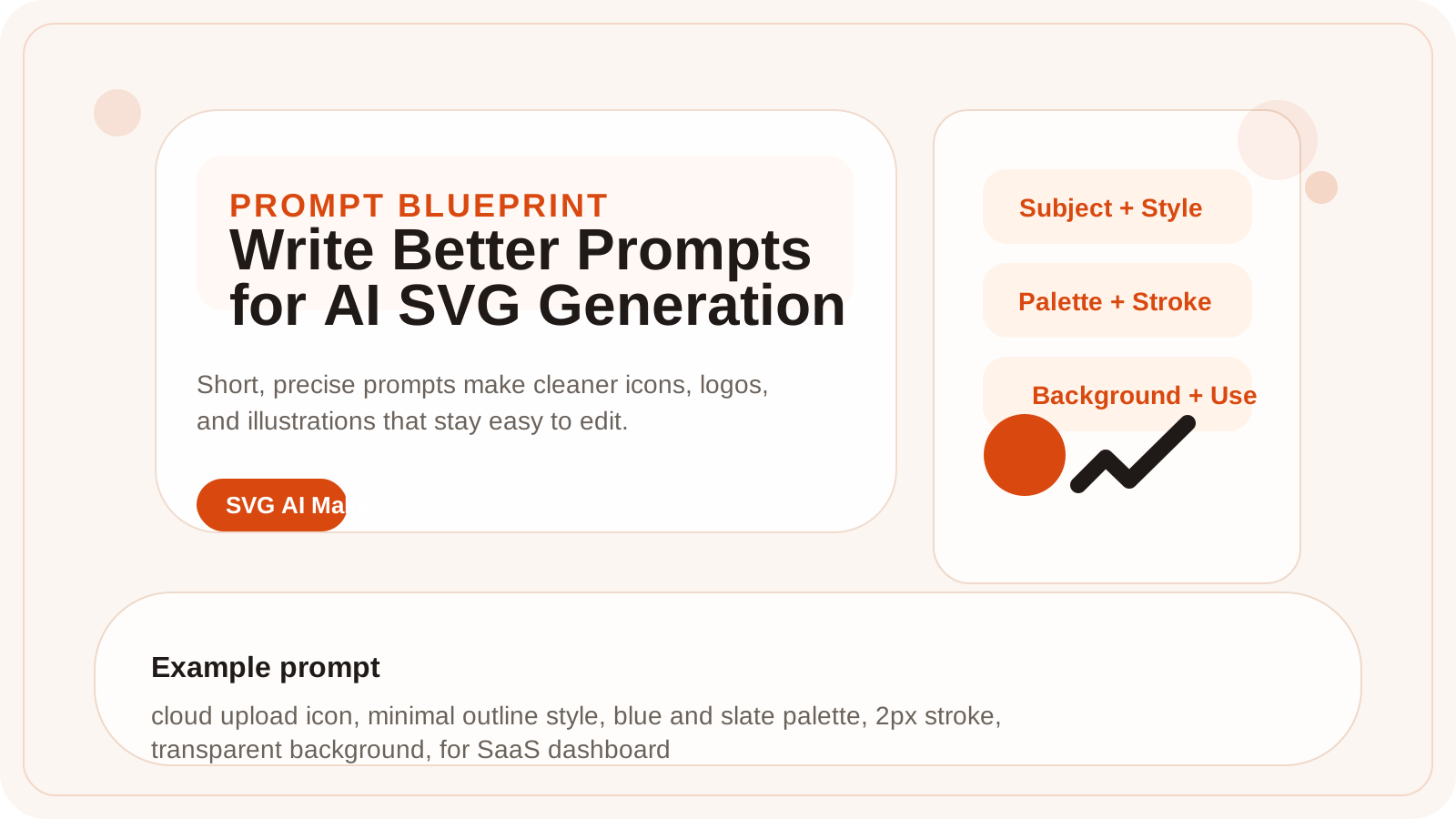
subject + style + composition + color palette + stroke treatment + background + intended use
Example: App Icon
Bad prompt:
"calendar icon"
Good prompt:
"calendar icon, minimal outline style, front view, blue and slate colors, 2px stroke, transparent background, for SaaS dashboard sidebar"
The second prompt tells the model exactly what to generate. You get something you can drop into your app with minimal tweaking.
Example: Landing Page Illustration
Bad prompt:
"team working on a project"
Good prompt:
"three people collaborating around a large screen showing a dashboard, modern flat vector style, soft gradients, warm neutral palette, clean background, for B2B SaaS homepage hero section"
The more context you give, the more production-ready the output.
Real Workflow: From Prompt to Shipped Asset
Here is how I actually use SVG AI Maker when I need graphics:
Step 1: Generate 3-4 variants
I write one solid prompt and generate a few variants. Not every output is perfect, but one is usually close enough to edit.
Example prompt for a blog header:
"abstract data visualization with connected nodes, geometric flat vector, blue and purple gradient, minimal detail, clean background, for technical blog header"
Step 2: Pick the best composition
I look for:
- Clean shapes that will scale well
- A layout that fits my use case (horizontal for headers, square for icons, etc.)
- Minimal unnecessary detail
Step 3: Edit if needed
SVG AI Maker outputs real SVG code. I can:
- Open it in VS Code and tweak colors directly in the code
- Import it into Figma or Inkscape for visual edits
- Simplify paths or adjust stroke width programmatically
Step 4: Ship it
I drop it into my project and it just works.
Total time: 5-10 minutes. Compare that to:
- Hiring a designer (days + budget)
- Learning Figma and Illustrator (weeks)
- Trying to clean up a PNG-to-SVG conversion (hours of frustration)
Common Mistakes Developers Make with AI SVG Generation
Mistake 1: Asking for too much in one prompt
If your prompt tries to describe a logo, a full scene, and three different visual styles at once, the output becomes a confused mess.
Fix: One clear subject per prompt. If you need multiple assets, generate them separately.
Mistake 2: No style direction
If you do not specify a style (flat, outline, geometric, isometric, etc.), the model picks randomly and you get inconsistent results.
Fix: Always include style keywords. "flat vector", "minimal outline", "geometric shapes" — these terms guide the output.
Mistake 3: Forgetting to specify background
If you want a reusable asset, you need a transparent background. Otherwise you get a white box around your graphic that breaks dark mode.
Fix: Always add "transparent background" or "no background" to your prompt.
Mistake 4: Trying to convert raster AI images to SVG
Image-to-SVG converters are designed for tracing photographs or scanned drawings. They create massively bloated SVG files with thousands of tiny paths. Not usable.
Fix: Generate SVG directly from text prompts instead of trying to convert PNG/JPG files.
Use Cases Where This Actually Solves Problems
1. Animated Assets for Web Projects
You need lightweight animated graphics — like a desktop pet, a loading animation, or an interactive background pattern.
Why PNG does not work: Too heavy, scales poorly, can't animate individual elements.
Why AI-generated images don't work: You get a static raster file.
Why SVG AI Maker works: You get editable vector paths that you can animate with CSS or JavaScript. Clean, lightweight, scalable.
Example prompt:
"cute robot character waving, simple geometric shapes, friendly minimal style, outlined vectors, transparent background, for desktop pet animation"
2. Landing Page Graphics That Match Your Brand
You need a hero illustration or feature section graphic that fits your brand colors and style.
Why stock graphics do not work: Almost fits, but not quite. Wrong colors, wrong vibe.
Why hiring a designer is overkill: You just need one graphic, not a full design system.
Why SVG AI Maker works: You describe what you want, get an editable vector, and tweak colors to match your brand in 5 minutes.
Example prompt:
"dashboard mockup with charts and graphs, modern flat vector, minimal detail, [your brand colors], clean background, for SaaS landing page"
3. Icon Sets for Product UI
You need a consistent set of icons for your app, but you do not want to piece together icons from different packs that do not quite match.
Example prompt:
"settings gear icon, minimal outline style, rounded corners, 2px stroke, transparent background, for product settings page"
Generate 10-15 icons with the same style keywords and you get a cohesive set.
4. Blog Headers and Social Media Graphics
You need unique graphics for every blog post, but stock photos feel generic and AI-generated images are too heavy.
Example prompt:
"abstract code visualization with flowing lines, modern vector style, teal and navy gradient, minimal shapes, clean background, for technical blog header"
5. Empty States and Onboarding Illustrations
You need friendly, approachable graphics for empty states, 404 pages, or onboarding flows.
Example prompt:
"empty inbox illustration with envelope icon, friendly minimal vector style, light blue accents, simple shapes, transparent background, for product onboarding screen"
When This Workflow Does Not Work
Be realistic about what AI SVG generation can do:
It is great for:
- Icons and simple illustrations
- Landing page graphics
- Blog headers and marketing assets
- UI illustrations and empty states
- Geometric or flat vector styles
It is not great for:
- Highly detailed photo-realistic art
- Complex character illustration with fine details
- Brand identity work that needs a designer's strategic input
- Assets that need to match a very specific existing style
If you need something complex or brand-critical, hire a designer. But for 80% of the graphics developers need day-to-day, this workflow is faster and more practical than any alternative.
Final Takeaway
You do not need design skills to get usable SVG assets. You need:
- A model that outputs SVG natively (not an image converter)
- Specific, well-structured prompts (subject + style + context)
- A realistic expectation (you will edit 20% of outputs, not 0%)
The old workflow was: describe what you want → get a raster image → fail to convert it → give up.
The new workflow is: describe what you want → get an editable SVG → tweak if needed → ship.
That is the difference between spending two hours fighting with vectorizers and shipping your feature in ten minutes.
Try it with SVG AI Maker and see how much faster you can move when graphics stop being a bottleneck.
Author
